Mobile ID
Set up and issue mobile credentials
Mobile ID
CredoID supports STid Mobile ID, HID Origo and HID Origo Wallet mobile credentials.
Mobile ID is an alternative to traditional ID cards, instead of using cards or fobs to access the building, the Mobile IDs are stored on the user's mobile device.
Only 1 Mobile ID per user is allowed.
Mobile application is required for STid Mobile ID, HID Origo or Farpointe CONEKT.
Download links:
STid Mobile ID (Google Play Store - Android)
STid Mobile ID (App Store - iOS)HID Mobile Access (Google Play Store - Android)
HID Mobile Access (App Store - iOS)Conekt Wallet App (Google Play Store - Android)
Conekt Wallet App (App Store - iOS)
Adding new Mobile ID provider
To add a new Mobile ID provider navigate to "Settings -> General -> Mobile ID"
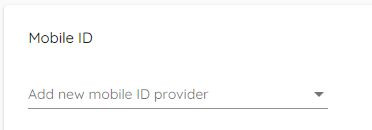
Click Add new Mobile ID provider and select the Mobile ID provider you want to set up.
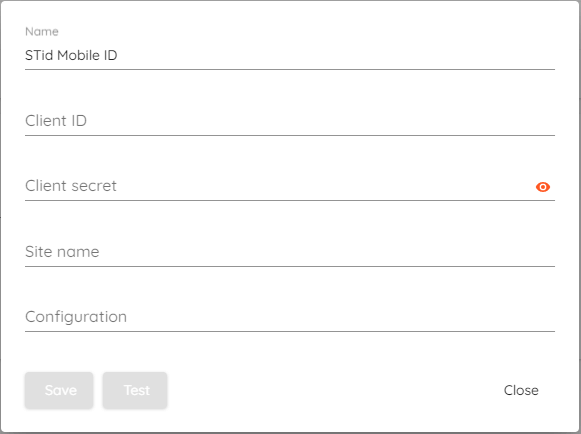
STid Mobile ID
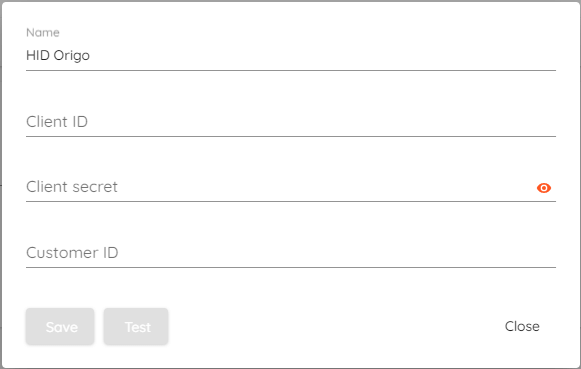
Origo
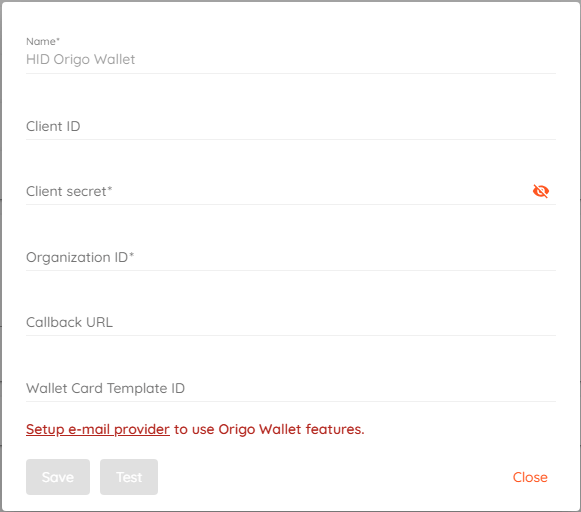
Origo Wallet
You have to configure e-mail provider (Notifications) to use Origo Wallet features.
Farpointe CloudCONEKT
Card formats must be added manually.
Format name has to be exactly the same as in CloudCONEKT portal (e.g. "26BitWiegand").
Organization ID will be available to select after entering API key and clicking
button.
If you have created your own configuration in CloudCONEKT portal - you can click "Enter custom ID" and use your configuration instead of default ones.
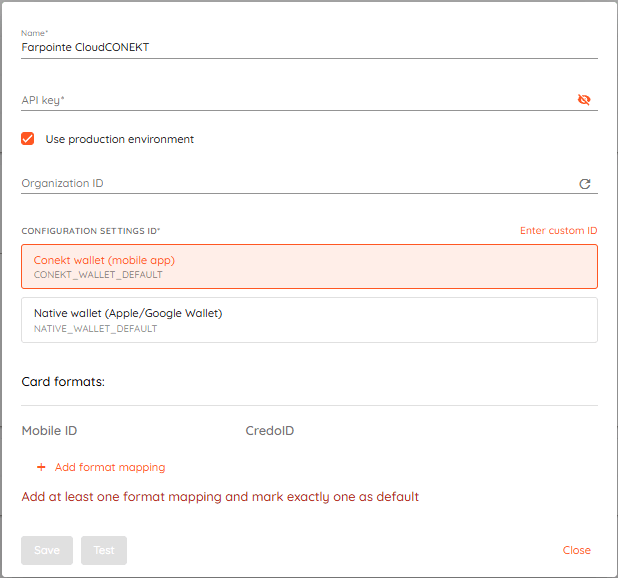
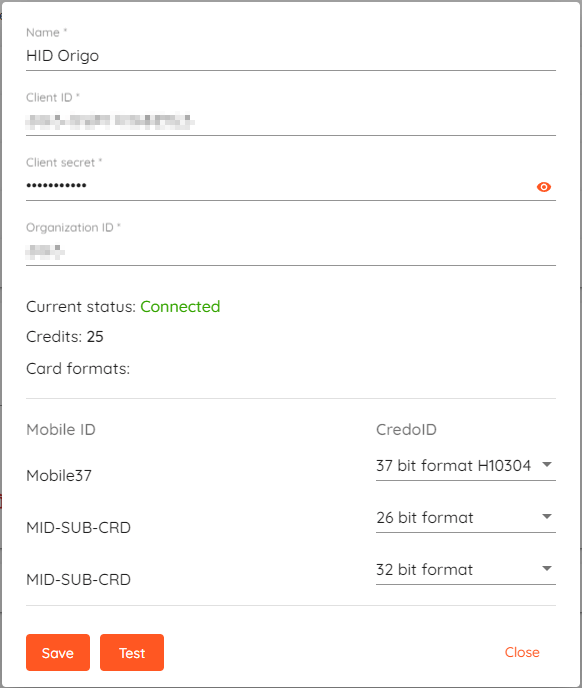
Details should be provided by the corresponding Mobile ID provider.
Fill in details and then click "Save".
To check if the connection can be established press "Test".
If all the entered details are correct, the status will show as Connected, and you will be able to view the Credits available and the Card formats selection.
In the Card formats selection, you can select enabled CredoID card formats for your cards from the HID Origo portal.
Saved Mobile ID providers will be shown in the "Mobile ID" tab in "Settings".
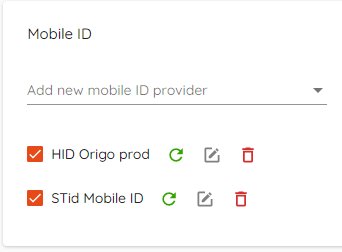
A checkbox allows you to disable the Mobile ID provider.
 - Check current status of Mobile ID provider.
 - Edit details of Mobile ID provider.
 - Remove Mobile ID provider.
Issuing Mobile ID
To issue a virtual access card (Mobile ID):
- Go to your user list which can be found in the Users menu.
- Select the desired user from the list.
- Go to "Identifications" tab and click "Identifications" tab to add a new set.
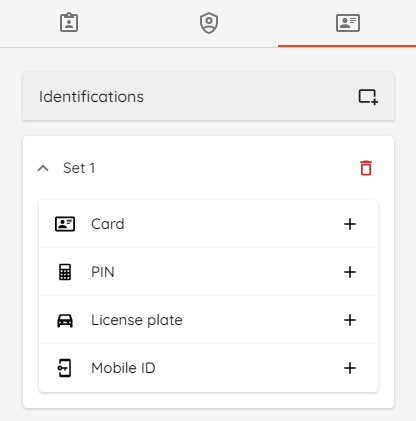
- Expand the "Card" section by clicking the "+" icon.
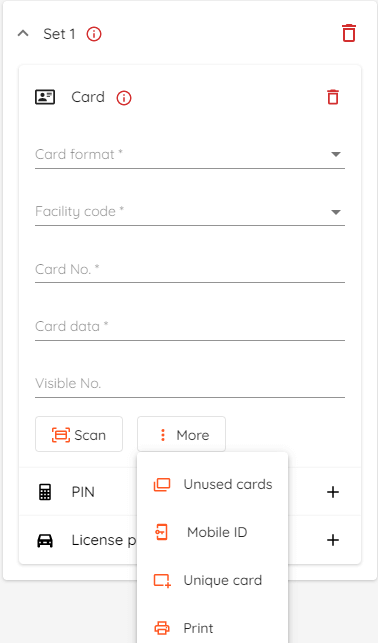
- Click "More" and select "Mobile ID" from the available options.
- In the pop-up window select from the list of previously configured providers.
User's first name, surname, and e-mail are taken from user details but can be changed and saved in this window.
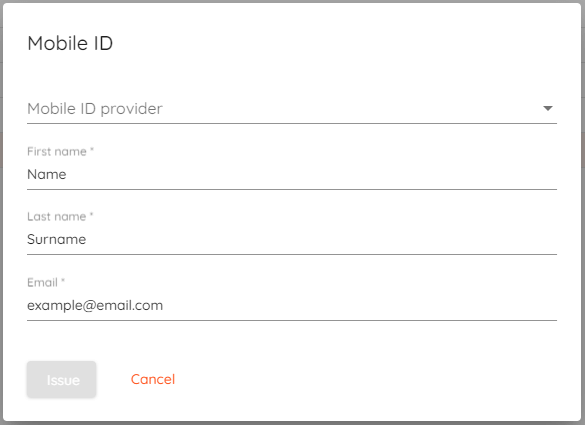
- After selecting a provider and checking if user details are correct - click "Issue".
- If the issuance of the virtual card is successful - a "Sent" message and "Save" button will appear. Click "Save", pop-up window will close.
- Click "Save" again to save card details in the "Identifications" tab.
- Follow the instructions in your e-mail to activate the issued card.
Mobile ID status
"Sent" status is shown once the card has been issued but not yet activated.

"Active" status is shown once the card has been activated.

Mobile ID status refreshes once every 10 minutes, but the card can be used immediately once activated.
Troubleshooting
After setting up integration with HID Origo Mobile ID you might receive the following error message while trying to issue a new credential:
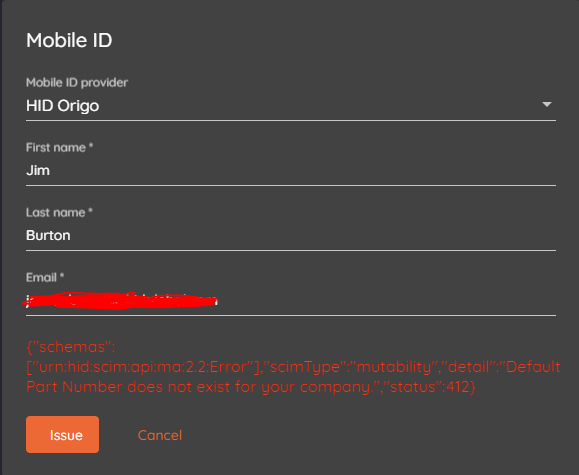
Solution is to update CredoID to the newest version so the card format selection is enabled within CredoID UI.
Workaround for older CredoID releases (Up to 4.18.5)
Navigate to your HID Origo Portal -> Settings and set one of the Mobile IDs as default.
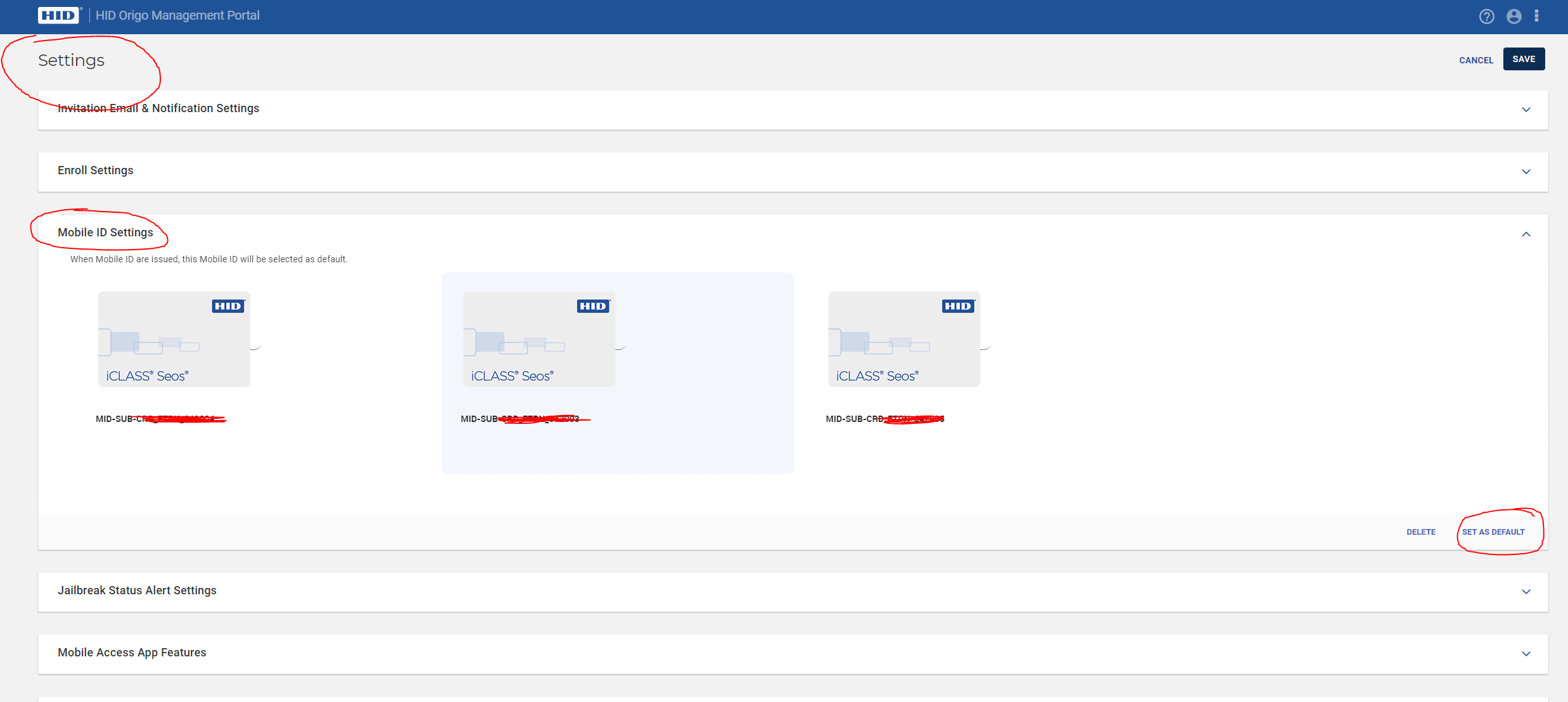
The new card will be issued without errors.
Applying mobile keys (HID)
If your reader is rejecting your mobile ID - you need to add a mobile key for your reader using the 'HID Reader Manager' app, which is available on the App Store or Google Play.
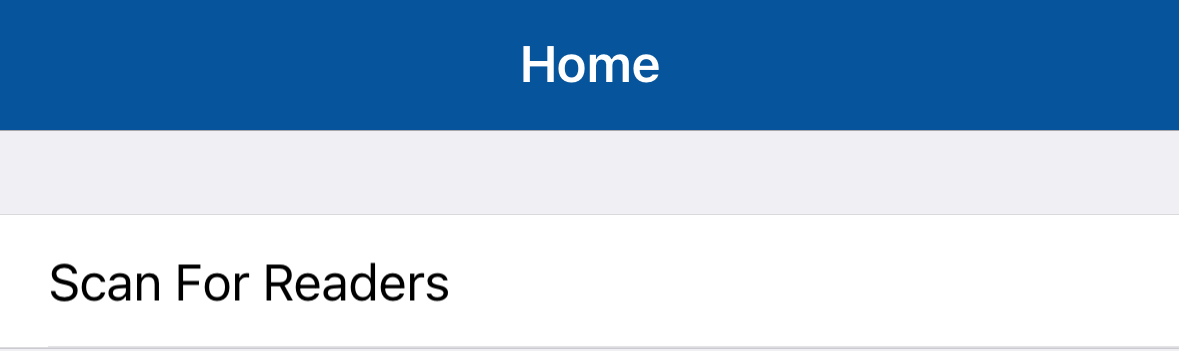
- Open the app and click "Scan For Readers".
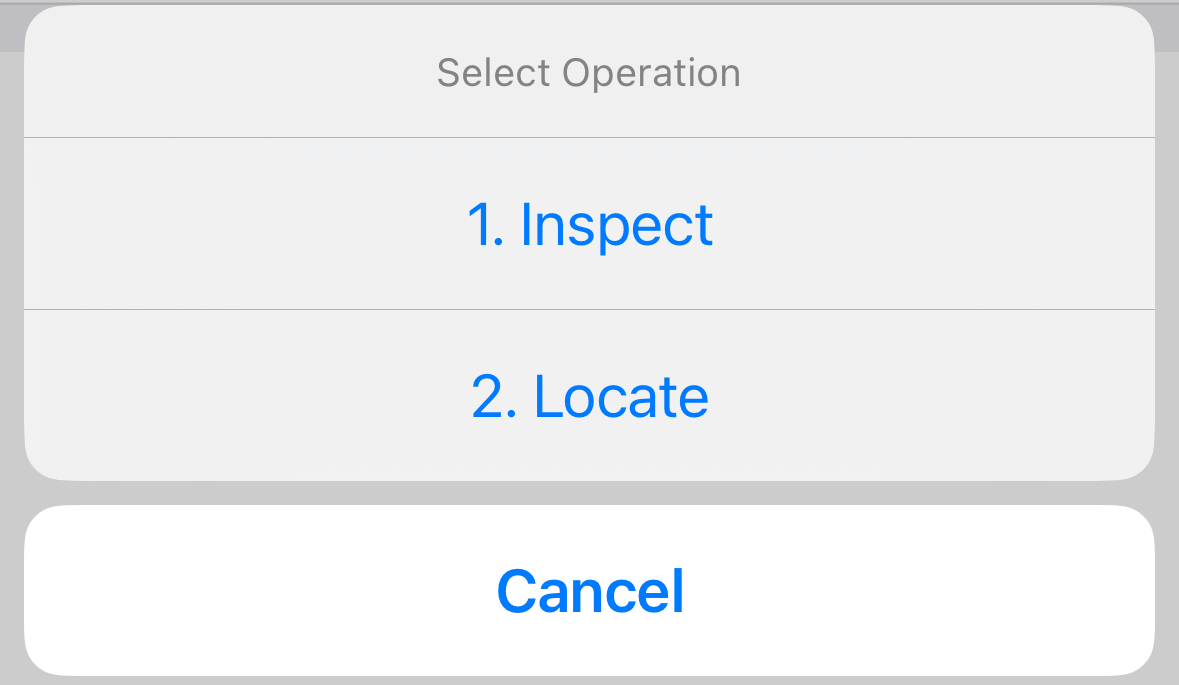
- Select your reader and click "Inspect".
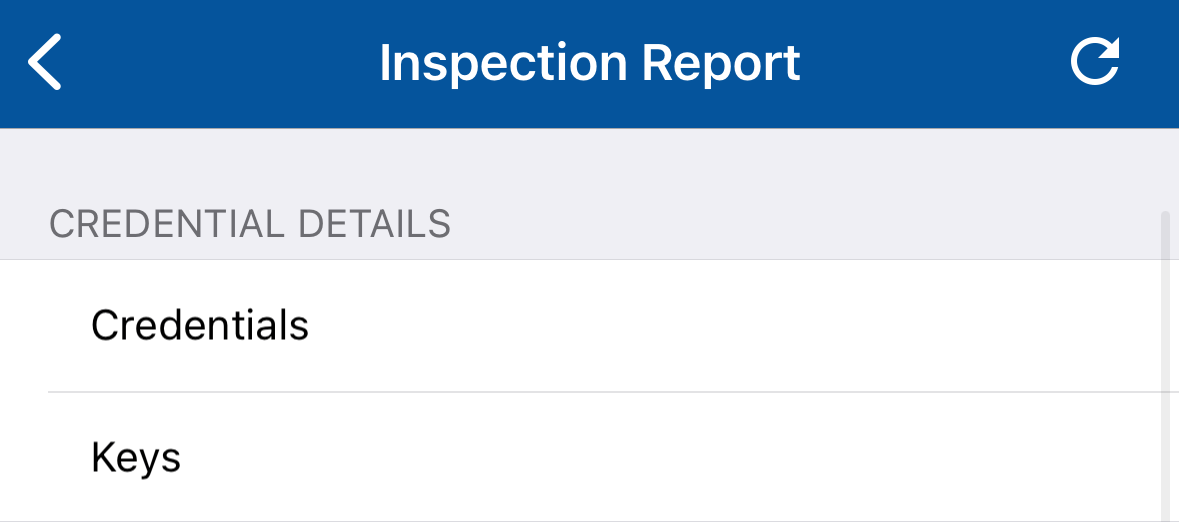
- Click "Detailed Configuration".

- Click "Keys".
- Click "Add Keys".
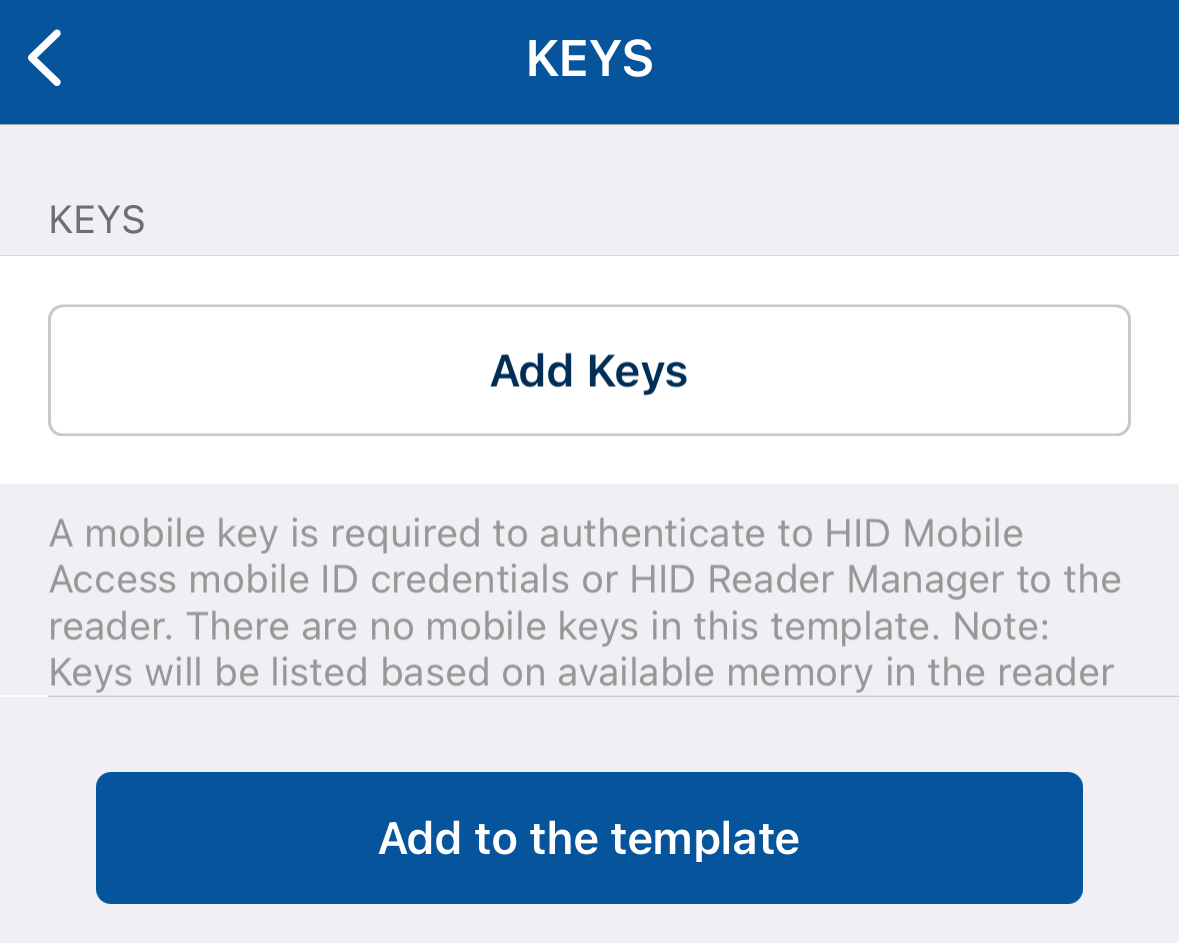
- Select your mobile key, click "Add to the template" and then "Apply selected items".
Administration Keys are required to manage HID Elite or HID Mobile Access enabled readers.